Astro
Set up your first durable workflow in an Astro application.
This guide will walk through setting up your first workflow in an Astro app. Along the way, you'll learn more about the concepts that are fundamental to using the development kit in your own projects.
Create Your Astro Project
Start by creating a new Astro project. This command will create a new directory named my-workflow-app and setup a minimal Astro project inside it.
npm create astro@latest my-workflow-app -- --template minimal --install --yesEnter the newly made directory:
cd my-workflow-appInstall workflow
npm i workflowConfigure Astro
Add workflow() to your Astro config. This enables usage of the "use workflow" and "use step" directives.
// @ts-check
import { defineConfig } from "astro/config";
import { workflow } from "workflow/astro";

// https://astro.build/config
export default defineConfig({
  integrations: [workflow()],
});Create Your First Workflow
Create a new file for our first workflow:
import { sleep } from "workflow";

export async function handleUserSignup(email: string) {
  "use workflow";

  const user = await createUser(email);
  await sendWelcomeEmail(user);

  await sleep("5s"); // Pause for 5s - doesn't consume any resources
  await sendOnboardingEmail(user);

  return { userId: user.id, status: "onboarded" };
}
We'll fill in those functions next, but let's take a look at this code:
- We define a workflow function with the directive
"use workflow". Think of the workflow function as the orchestrator of individual steps. - The Workflow DevKit's
sleepfunction allows us to suspend execution of the workflow without using up any resources. A sleep can be a few seconds, hours, days, or even months long.
Create Your Workflow Steps
Let's now define those missing functions.
import { FatalError } from "workflow"

// Our workflow function defined earlier

async function createUser(email: string) {
  "use step";

  console.log(`Creating user with email: ${email}`);

  // Full Node.js access - database calls, APIs, etc.
  return { id: crypto.randomUUID(), email };
}

async function sendWelcomeEmail(user: { id: string; email: string; }) {
  "use step";

  console.log(`Sending welcome email to user: ${user.id}`);

  if (Math.random() < 0.3) {
  // By default, steps will be retried for unhandled errors
   throw new Error("Retryable!");
  }
}

async function sendOnboardingEmail(user: { id: string; email: string}) {
  "use step";

  if (!user.email.includes("@")) {
    // To skip retrying, throw a FatalError instead
    throw new FatalError("Invalid Email");
  }

  console.log(`Sending onboarding email to user: ${user.id}`);
}
Taking a look at this code:
- Business logic lives inside steps. When a step is invoked inside a workflow, it gets enqueued to run on a separate request while the workflow is suspended, just like
sleep. - If a step throws an error, like in
sendWelcomeEmail, the step will automatically be retried until it succeeds (or hits the step's max retry count). - Steps can throw a
FatalErrorif an error is intentional and should not be retried.
We'll dive deeper into workflows, steps, and other ways to suspend or handle events in Foundations.
Create Your Route Handler
To invoke your new workflow, we'll have to add your workflow to a POST API route handler, src/pages/api/signup.ts with the following code:
import type { APIRoute } from "astro";
import { start } from "workflow/api";
import { handleUserSignup } from "../../workflows/user-signup";

export const POST: APIRoute = async ({ request }: { request: Request }) => {
  const { email } = await request.json();

  // Executes asynchronously and doesn't block your app
  await start(handleUserSignup, [email]);
  return Response.json({
    message: "User signup workflow started",
  });
};

export const prerender = false; // Don't prerender this page since it's an API route
This route handler creates a POST request endpoint at /api/signup that will trigger your workflow.
Workflows can be triggered from API routes or any server-side code.
Run in Development
To start your development server, run the following command in your terminal in the Vite root directory:
npm run devOnce your development server is running, you can trigger your workflow by running this command in the terminal:
curl -X POST --json '{"email":"hello@example.com"}' http://localhost:4321/api/signupCheck the Astro development server logs to see your workflow execute as well as the steps that are being processed.
Additionally, you can use the Workflow DevKit CLI or Web UI to inspect your workflow runs and steps in detail.
npx workflow inspect runs
# or add '--web' for an interactive Web based UI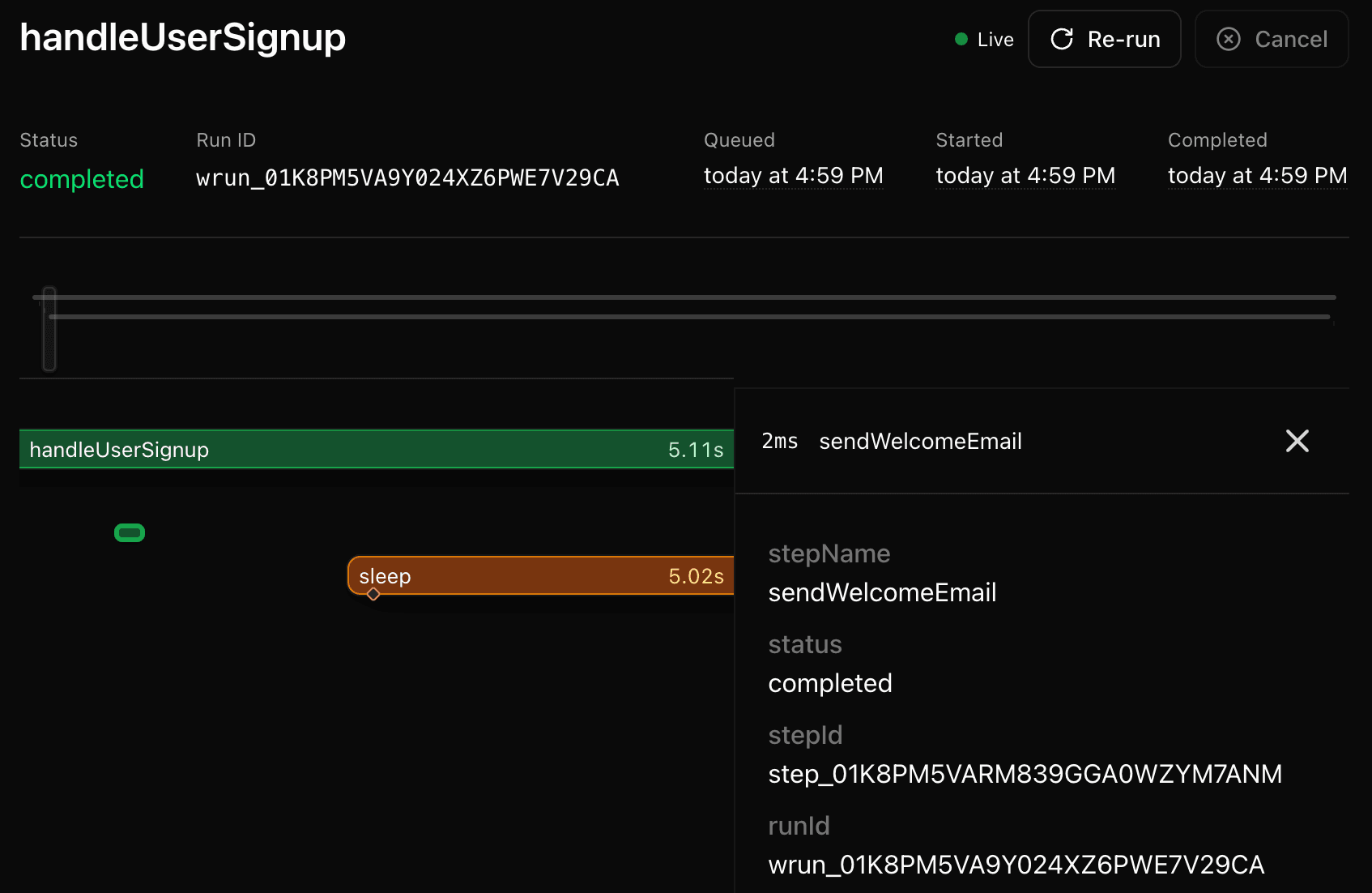
Deploying to Production
Workflow DevKit apps currently work best when deployed to Vercel and needs no special configuration.
To deploy your Astro project to Vercel, ensure that the Astro Vercel adapter is configured:
npx astro add vercelAdditionally, check the Deploying section to learn how your workflows can be deployed elsewhere.
Next Steps
- Learn more about the Foundations.
- Check Errors if you encounter issues.
- Explore the API Reference.